Travel eSIM

Install and set up your eSIM

Install on Wi-Fi before you travel, or at the hotel after you land. You do not need to install anything at the airport.

Device steps follow official Apple, Google and Samsung pages, checked 11 November 2026 (Europe/Madrid).

1. Check your phone is compatible and unlocked

You need a phone that supports eSIM and is unlocked (not locked to a home carrier). Most recent iPhones (XS and later), Google Pixel phones and many Samsung Galaxy models do.

Find the EID (eSIM identity)

  • iPhone: Settings > General > About, then scroll to EID. You can also dial *#06# to see IMEI and EID.
  • Pixel: Settings > About phone > SIM status > EID (it may also be printed on the box). Official help (new tab)
  • Samsung Galaxy: Settings > About phone, or dial *#06#.

If there is no EID, the phone probably cannot use an eSIM. If the phone is carrier-locked, the travel eSIM may not connect even after install.

2. Install at home, on Wi-Fi

Install the eSIM on a reliable Wi-Fi connection before you travel, or at the hotel after you land. The data pack does not start when you install it. When validity starts is confirmed at purchase. Contact us on WhatsApp.

Any deadline for a first connection on an unused eSIM is confirmed at purchase. Contact us on WhatsApp.

After install, leave the travel eSIM off (or not set as the data line) until you arrive, so it does not attach to a network early.
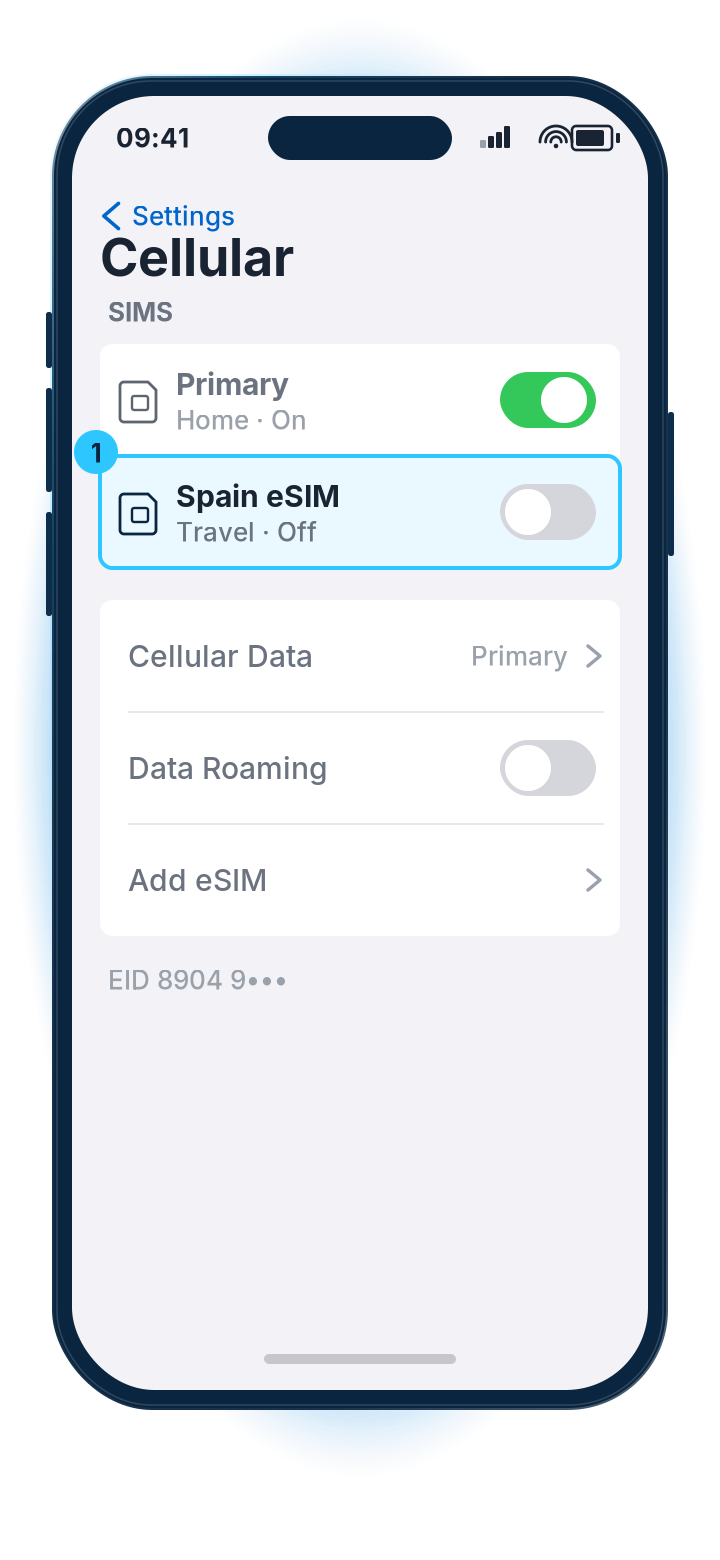
Illustrated iPhone Cellular settings. A Spain eSIM is listed with its toggle off, highlighted as the state to keep after installing at home on Wi-Fi.
iPhone Settings showing the new eSIM listed, toggle off

3. What we send you

After payment, you receive:

  • A QR code generated from the LPA string (LPA:1$SM-DP-ADDRESS$ACTIVATION-CODE)
  • A one-tap Apple install link
  • A one-tap Android install link
  • The ICCID (the eSIM’s serial)

You can use any one of the three install methods below. You only need to install once.

4. Three ways to install

iPhone (iOS 17 / 18 and later)

Official: Set up and use an eSIM on iPhone (new tab)

  1. Connect to Wi-Fi.
  2. Open the email or page we sent you.

A

One-tap Apple link

Tap the Apple install link. Follow the on-screen steps and accept the cellular plan.

B

QR code

Go to Settings > Cellular (or Mobile Data, depending on region) > Add eSIM (or Add Cellular Plan). Choose Use QR Code and scan the QR. On iOS 17.4 and later you can also long-press a QR image in Photos or Mail and add the eSIM from there.

C

Enter details manually

Settings > Cellular / Mobile Data > Add eSIM > Enter Details Manually. Enter the SM-DP+ address and the activation code from the LPA string. The LPA looks like LPA:1$SM-DP-ADDRESS$ACTIVATION-CODE.
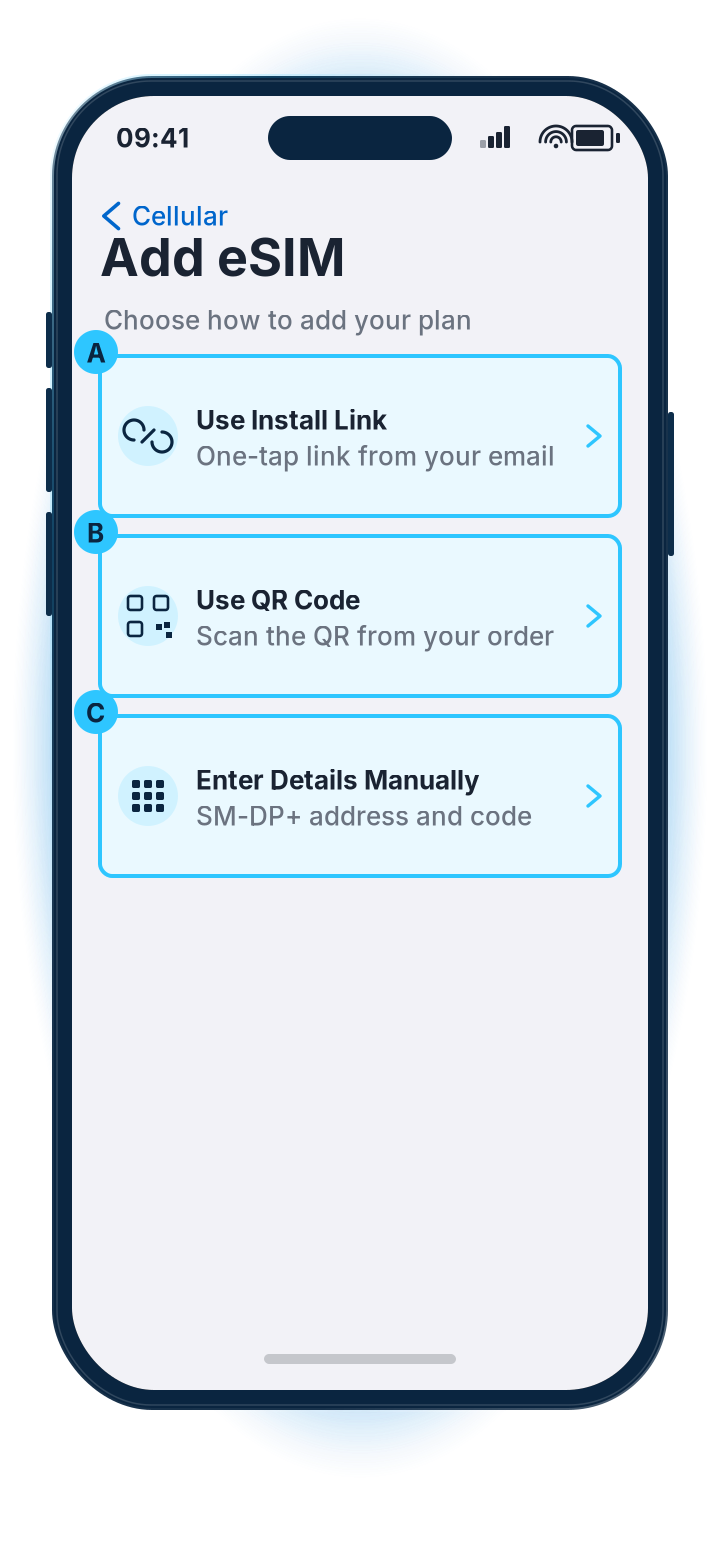
Illustrated iPhone Add eSIM screen, with three alternative options highlighted: Use Install Link, Use QR Code, and Enter Details Manually.
iPhone Add eSIM options: QR, link, manual

Give the plan a label you will recognise, for example “Spain eSIM”. Keep your home number for calls and SMS if you want. Do not delete the eSIM later unless support asks you to. Whether this profile can be downloaded again is confirmed at purchase. Contact us on WhatsApp before you remove it.

Android — Google Pixel

Official: Use an eSIM on your Pixel phone (new tab)

  1. Connect to Wi-Fi.
  2. Open Settings > Network & internet > SIMs > Add SIM / Download a SIM instead.

A

One-tap Android link

Tap the Android install link we sent and follow the prompts.

B

QR code

Choose “Use a QR code” or the similar option and scan the QR, or upload the QR image.

C

Activation code

Choose to enter the code manually and paste the LPA / activation details.
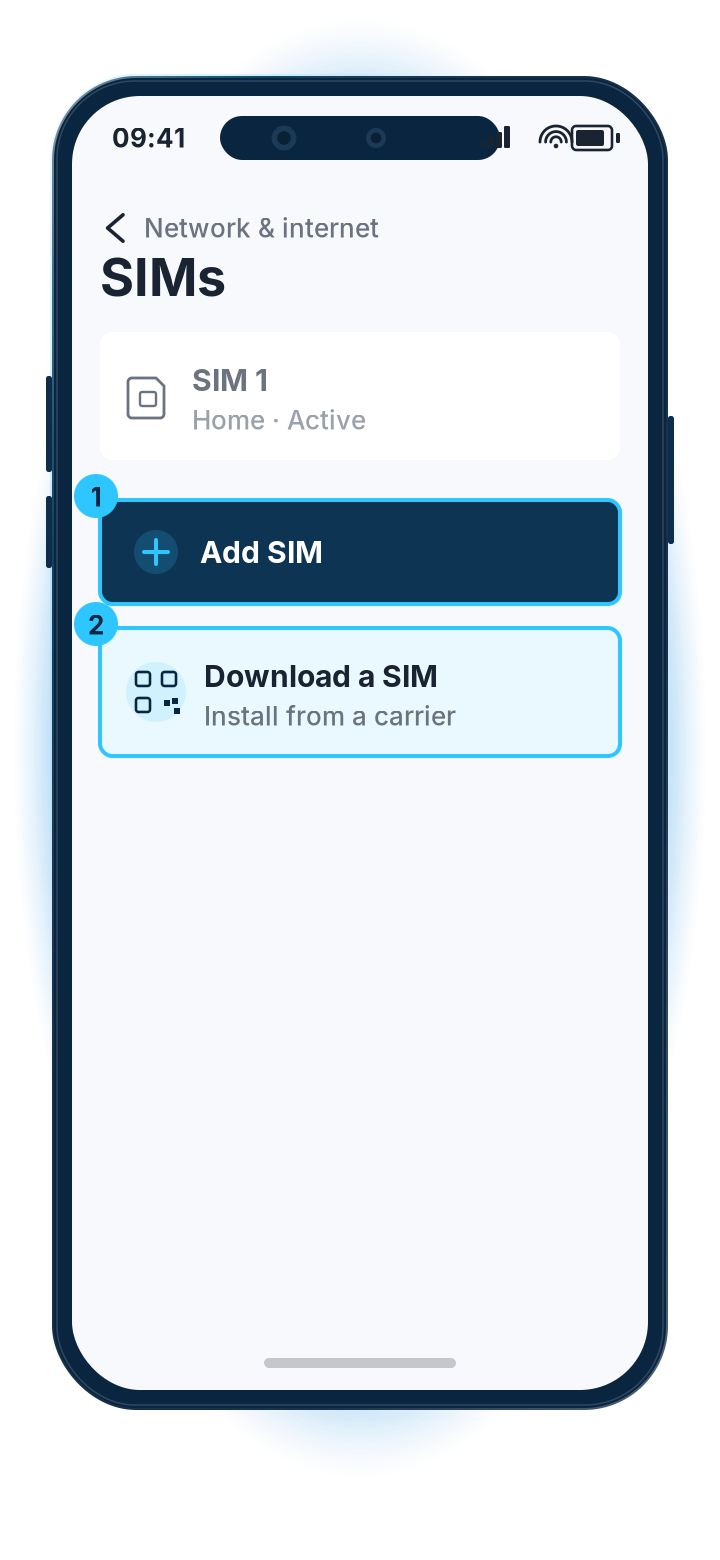
Illustrated Pixel SIMs settings, reached from Settings, Network and internet, SIMs, with Add SIM and Download a SIM highlighted.
Pixel Add SIM / Download a SIM

Android — Samsung Galaxy

Samsung UK eSIM help (updated 16 September 2026):

  1. Connect to Wi-Fi.
  2. Settings > Connections > SIM manager > Add eSIM.

A

QR code

Scan the QR code.

B

Android install link

Tap the Android install link.

C

Activation code

Choose Enter activation code and paste the LPA details.

Menu names can vary slightly by Android version and country. If you cannot see Add eSIM, the phone may not support eSIM, or a software update may be needed.
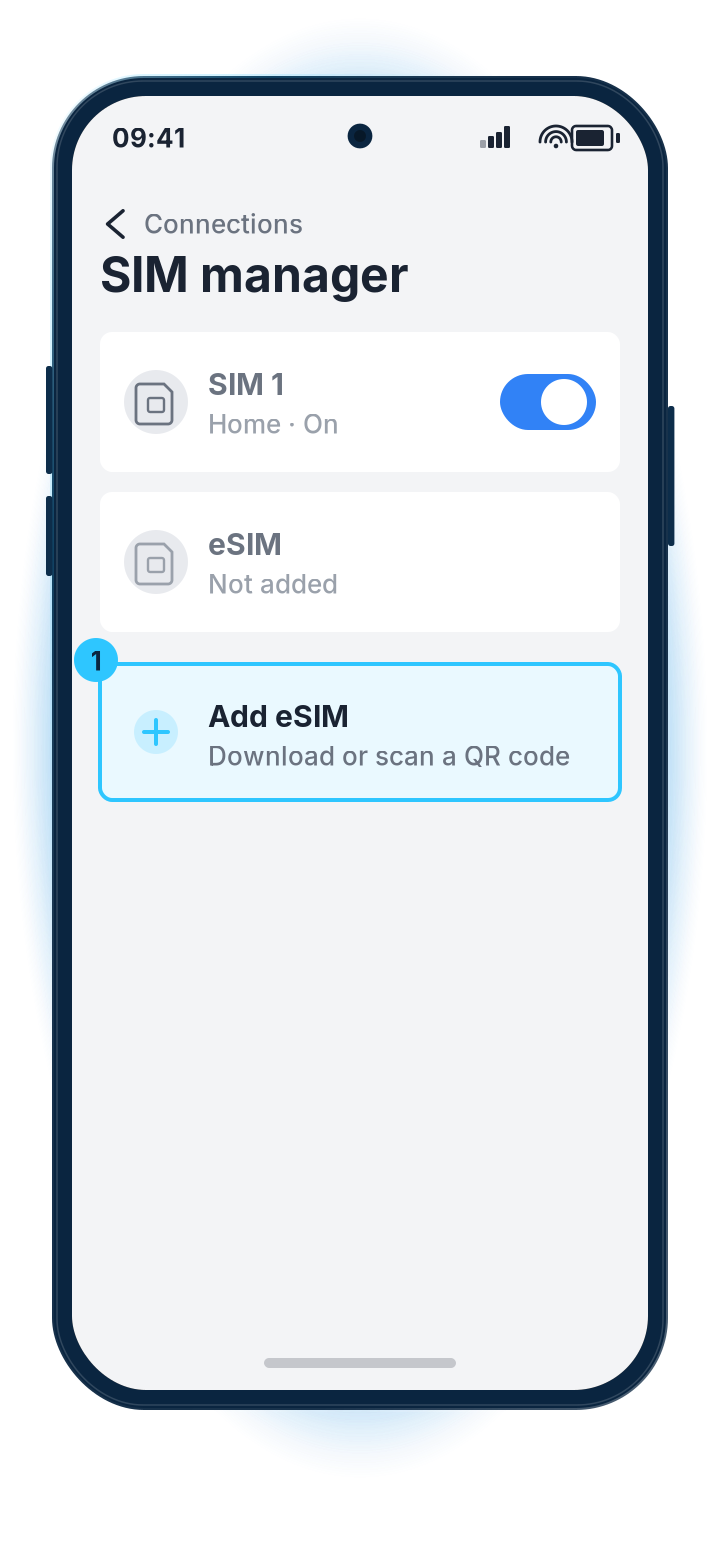
Illustrated Samsung SIM manager, reached from Settings, Connections, SIM manager, with the Add eSIM action highlighted.
Samsung SIM manager, Add eSIM

Other Android phones

Look under Settings for Network & internet, Connections, or Mobile network, then SIMs or SIM cards, then Add eSIM / Download eSIM / Add mobile plan. Use the QR, the Android link, or the activation code. If those options are missing, the device may not support eSIM.

5. When you arrive at Málaga Airport

Do this after you land, before you leave the terminal if you can.
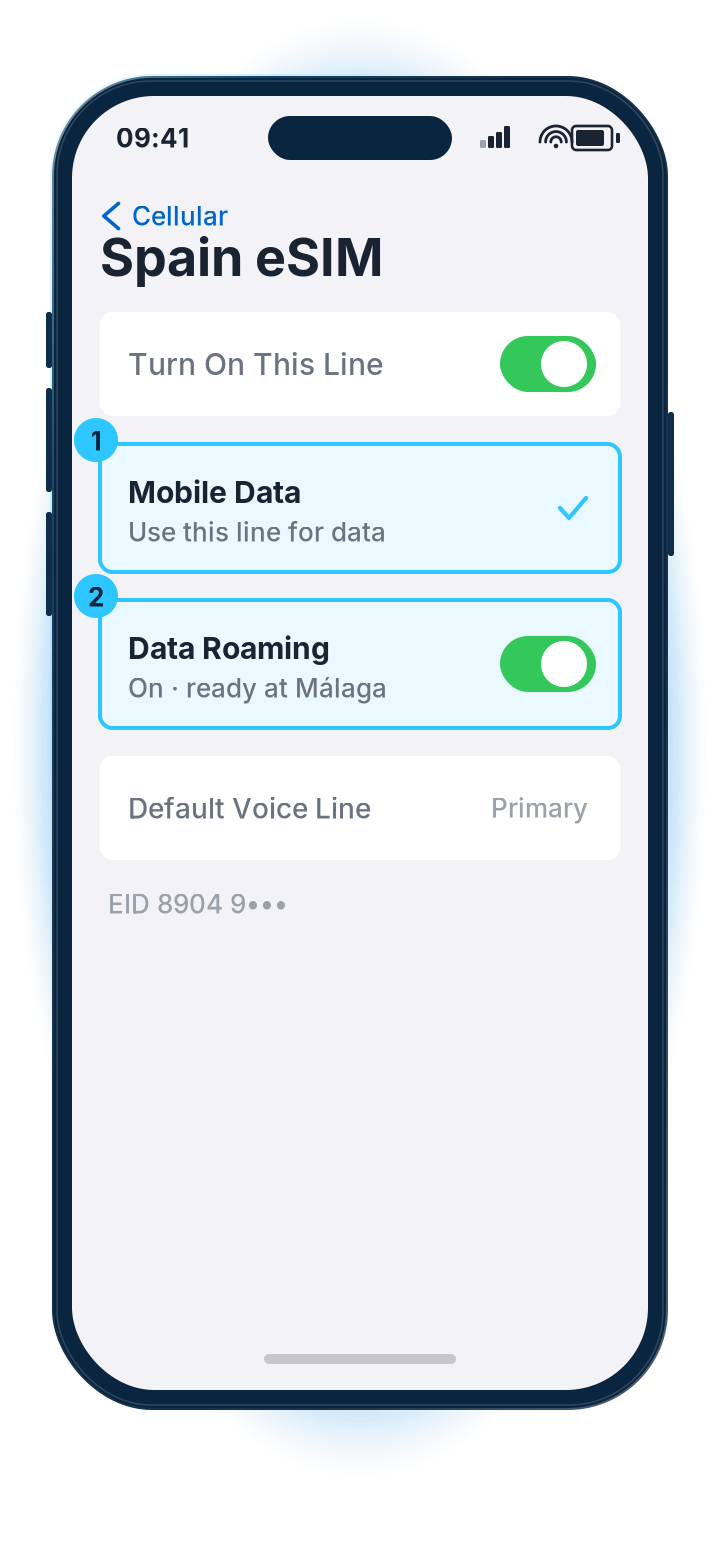
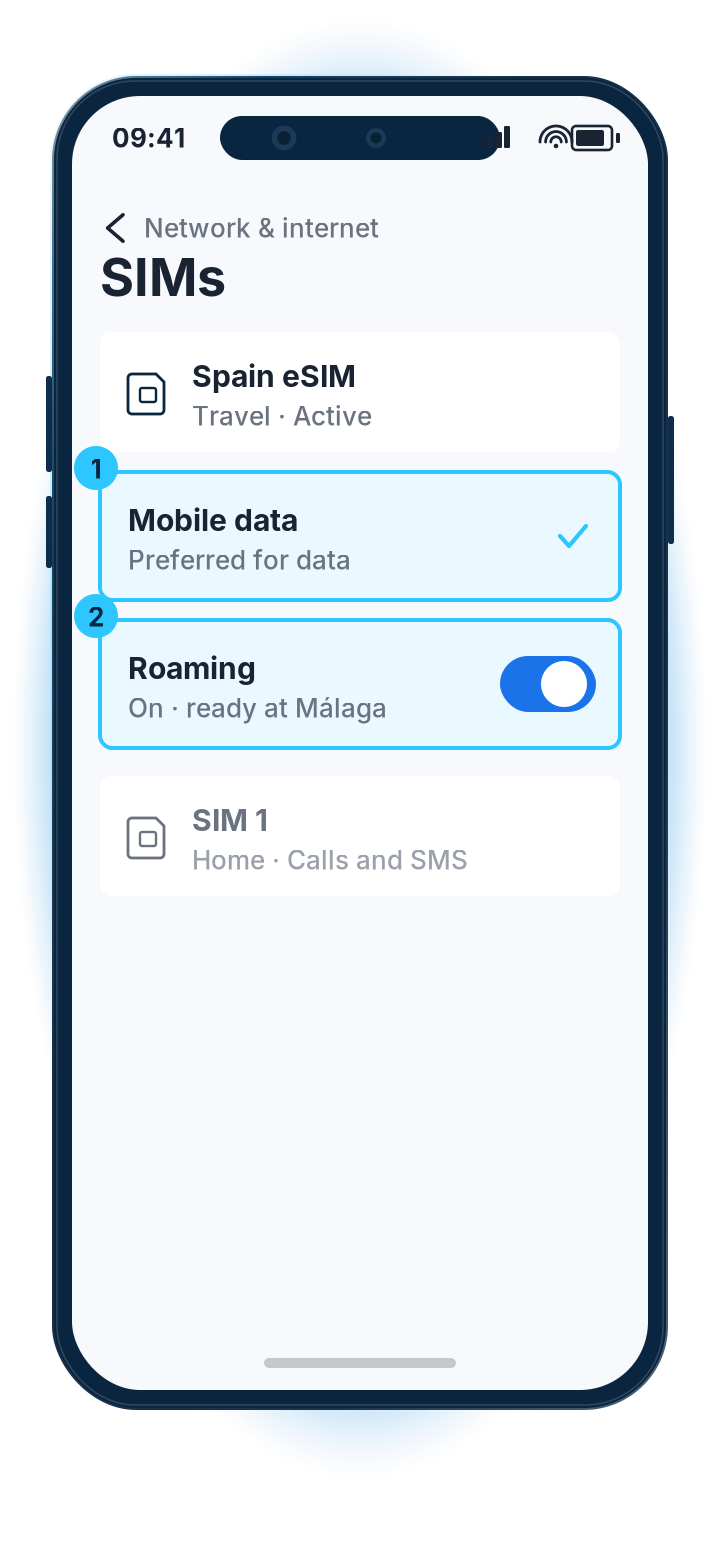
  1. Turn on the travel eSIM (the line we asked you to leave off until arrival).
  2. Set the travel eSIM as the line for mobile data.
  3. Turn data roaming on for the travel eSIM only.
  4. Keep your home SIM or eSIM for calls and SMS if you want, and turn data roaming off on the home line so you are not billed by your home operator.
  5. Give the phone a minute to find a network. Which networks this plan can use is confirmed at purchase. Contact us on WhatsApp. If it does not attach, message us rather than guessing a network name.
Illustrated iPhone Spain eSIM settings. The plan is set as Mobile Data and Data Roaming is on, both highlighted, for use on arrival at Málaga Airport.
iPhone Cellular: Spain eSIM set as Mobile Data, Data Roaming on
Illustrated Android SIMs settings in a Pixel-style list, representing Pixel or Samsung. The Spain eSIM is preferred for mobile data and roaming is on, both highlighted.
Pixel or Samsung SIMs: travel SIM as mobile data, roaming on

You do not need to install anything at the airport. The QR was for earlier, on Wi-Fi.

Most phones pick the access point name up automatically. If data does not start after roaming is on, contact us on WhatsApp and we will check. Do not guess an access point name.

6. Using the eSIM, and topping up

  • The pack is for the days and the data shown on the plan. When that time starts is confirmed at purchase. Contact us on WhatsApp. Data stops when the allowance is used.
  • You can check remaining data in the phone’s SIM or mobile-data settings, and we can look it up for you from the ICCID.
  • When the pack is low or used up, buy a top-up on the same eSIM. You do not need a new QR or a new install.
  • There are no unlimited or daily plans.

7. Troubleshooting

No signal or “No service”

  • Confirm the travel eSIM is on and set as the data line, with data roaming on.
  • Toggle Airplane mode on for 10 seconds, then off.
  • Restart the phone.
  • If it still will not attach, message us on WhatsApp. We do not publish a network list or speeds.
  • Check the phone is unlocked.
  • Still stuck? Message us on WhatsApp (see Support). Send the ICCID, phone model and a screenshot of the SIM / network screen.

Data does not work even with signal

  • Data roaming must be on for the travel eSIM.
  • Wait a minute after landing. First attach can take a short time.
  • If nothing else works, message us on WhatsApp. Do not guess an access point name.

Do not delete the eSIM to try again. Message us first. Whether this profile can be installed again from the same QR is confirmed at purchase.

Dual SIM

Keep the home line for calls if you want. Only the travel eSIM should have data roaming on. See Apple Dual SIM (new tab) and Travel with Dual SIM (new tab), and Pixel Dual SIM (new tab).

Hotspot

Whether this plan allows tethering is confirmed at purchase. Contact us on WhatsApp. We do not promise a hotspot on this plan.

8. Need help?

Message us on WhatsApp (opens WhatsApp in a new tab)

24/7. Have your order email, ICCID and phone model ready.